
Manage Domains

All set up and configuration of the domains you monitor is managed at the Manage Domains page.
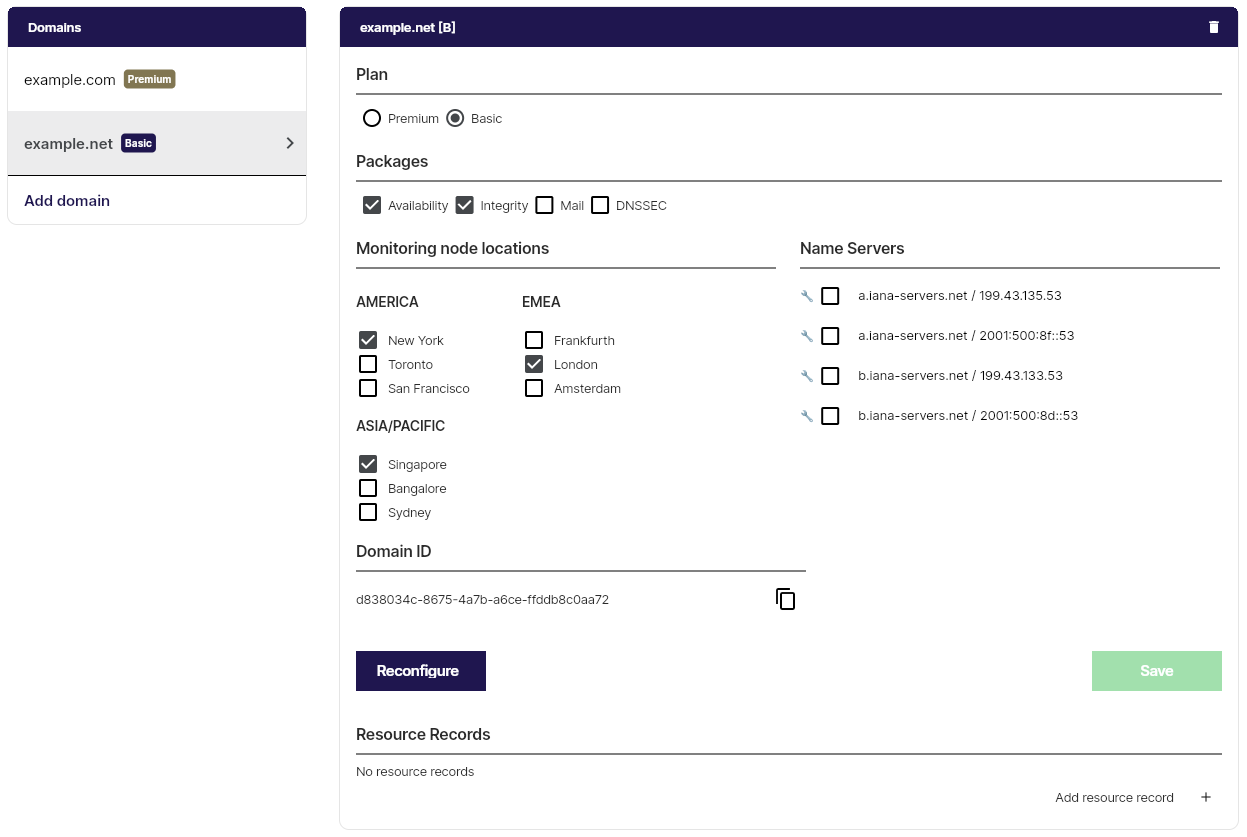
The Domains pane
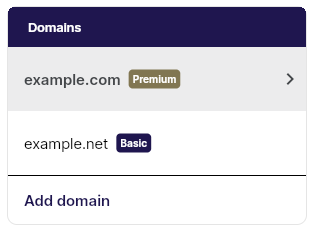
The domain pane lets you add domains to monitor or toggle between domains already configured for monitoring.
Each domain is marked with a Basic or Premium marker for easy identification of which plan the domain is configured with.
Domain name pane
Add domain
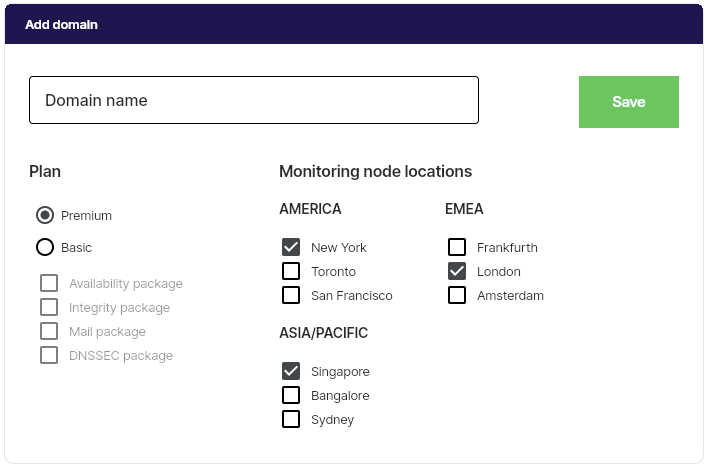
This is the first thing you see if no domains are configured, or if you klick on the add domain text in the Domains pane.
Type the domain name in the text box, select the plan and monitoring locations you would like for the domain and press the Save button.
A few seconds later the domain is configured for monitoring and the first monitoring pass has started. It might take up to a minute before the monitoring results are in and displayed in the Monitoring Dashboard.
A dialogue banner on the bottom of your browser will indicate success or failure.
Plan, Packages and Monitoring node locations

Plan and packages let you know the currently selected Plan for the domain. If the selected plan is Basic, the selected packages are shown in the checkboxes.
The selected monitoring node locations are shown below the Plan and Packages section.
You can change the plan, packages and monitoring node locations during a subscription period. If you for example remove a package, the change will take effect at the next payment date. If you add a package, monitoring node location or change from a Basic plan to a Premium plan, the charge is added to your upcoming bill. All changes need to be saved before any changes are completed.
Note that a minimum of three monitoring node locations must be selected.
Name Servers
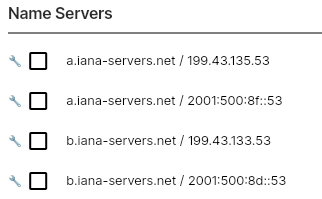
The Name Server section displays the NS resource records for the domain as configured in your name servers. These are automatically added by the configuration engine when you configured the domain for monitoring. These name servers are stored in the configuration database and is used throughout the monitoring cycles.
The checkboxes in front of each NS are used if you want to exclude the marked name servers from the check cycles, for example through a service window.
Domain ID

The Domain ID is used to uniquely identify the domain and its configuration. Can be used if you for example want to retrieve monitoring data or change configuration to the domain through our API.
Use the copy icon to the right if you want to copy the Domain ID to the clipboard.
Save button
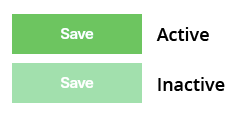
When the Save button is lit you can save any changes made to the monitor configuration.
If no changes has been made the Save button will remain dull green.
Reconfigure button

When the Save button is lit you can save any changes made to the monitor configuration.
If no changes has been made the Save button will remain dull green.
- Changes to the DNS infrastructure (If name servers has been added or removed or if their IP addresses has been changed).
- Changes to the MX resource records.
- Changes to DMARC and SPF TXT record
- Changes to the DS record
The records above are stored in the configuration database and are monitored for changes. Changes to these records will trigger an Error event. Once you have verified the changes legitimacy you must manually run a reconfiguration to update the configuration database. When the next check cycle is run the Error message will disappear.
Resource records
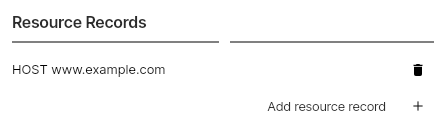
This section displays the resource records you monitor.
You can easily add and delete records here.
Add Resource record

To add a new resource record to monitor just click on the plus sign (+) in the bottom right corner and the add resource record dialogue box emerges.
Select the record type and add the host name part of the domain name. Below the text box you will see how the fully qualified domain name looks. If you need to monitor a record in the zone apex (i.e. the same name as the domain, please add the @ in the text field.
There are currently seven different resource record types to choose from where two of them might warrant some explanation.
When selecting the HOST resource record type, the configuration engine will figure out if the record is an A, AAAA or CNAME and configure it for monitoring accordingly. This means that you don’t have to configure separate entities if you have both A and AAAA addresses for the record. If the record is a CNAME it will monitor the CNAME.
The TXTSPF record is a special selection if you only want to monitor the Sender Policy Framework record and the configuration engine will look for the SPF identification in that text record.